How to Get Started with EspoCRM: A Beginner's Guide
Getting to grips with a new CRM doesn’t have to be complicated. Whether you’re moving away from spreadsheets, replacing an existing CRM or looking for a better way to manage customer relationships, EspoCRM offers a flexible platform that can grow alongside your business.
As an EspoCRM implementation and support partner, we help businesses get more from the platform, from initial setup and customisation to UK-based hosting and ongoing helpdesk support.
But if you’re just getting started, where do you begin?
In this guide, we’ll walk you through the basics of EspoCRM, including how to navigate the platform, manage your customer information and start building a CRM around the way your business works.
Looking for a more interactive demo? Head below to download our 20-minute EspoCRM demo with our Solutions Advisor.
Skip to:
What is EspoCRM?
EspoCRM is an open-source Customer Relationship Management (CRM) platform that helps businesses manage customer information, sales activities and business processes in one place.
With features for managing contacts, accounts, leads and opportunities, alongside flexible customisation and integration options, EspoCRM can be adapted to suit the way your business works.
New to EspoCRM? Read our complete “What is EspoCRM?” blog for a quick introduction to the platform before getting started.
1. Accessing your EspoCRM instance
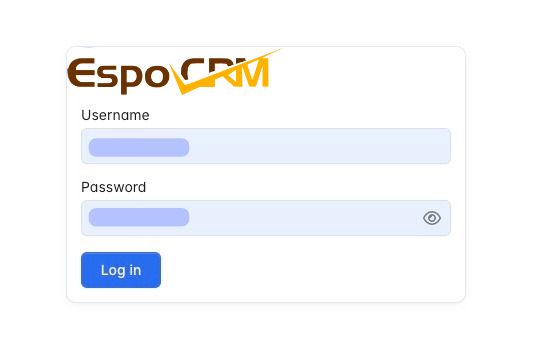
Before you can start using EspoCRM, you’ll need access to an installed instance. EspoCRM is self-hosted software, meaning it needs to run within a suitable hosting environment. This could be hosted on your own infrastructure or through a hosting provider like enable.services.
Once your instance has been configured, you’ll typically receive a web address and login credentials.
To get started:
- Open your EspoCRM URL in your web browser.
- Enter your username and password.
- Select the login option to access your CRM dashboard.
Your permissions will determine which areas of the CRM you can access and what actions you can perform. If you’re an administrator, you’ll have additional options for managing users, permissions, system settings and customisation.
A note on hosting: Where your CRM is hosted can affect its performance, security and maintenance. Some businesses choose to outsource their CRM hosting to ensure regular updates and backups without needing the technical skills in-house. If you need a hand with hosting, get in touch – we’d be happy to help!
2. Understanding the EspoCRM interface
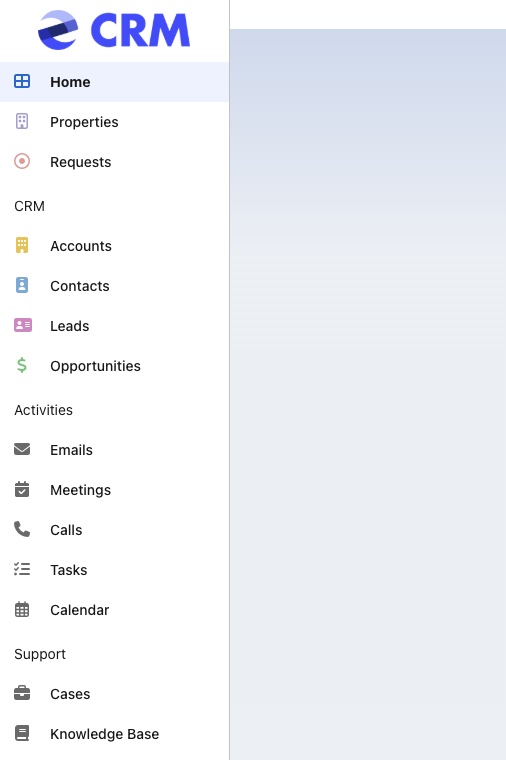
Once logged in, you’ll be taken to the main CRM interface. Although the exact layout will depend on your configuration and user permissions, there are several areas you’ll use regularly.
Navigation menu
The navigation menu provides access to the different sections of your CRM.
Depending on your setup, these may include:
- Accounts
- Contacts
- Leads
- Opportunities
- Activities
- Tasks
- Meetings
- Calls
- Emails
Selecting an option takes you to the relevant section, where you can view existing records or create new ones. Administrators can also configure which sections appear in the navigation menu, helping keep the interface relevant to different teams and users.
Dashboard
Your dashboard provides an overview of important CRM information. EspoCRM uses dashlets to display information such as sales activities, upcoming tasks, calendar events and other useful data.
You can customise your dashboard by adding, removing and rearranging dashlets, helping you prioritise the information you need.
For example, a sales representative might want quick access to their open opportunities and upcoming calls, while a sales manager might prefer an overview of team activity and pipeline performance.
The aim is to make important information easier to find without having to navigate through multiple sections of the CRM.
3. Create your first Account and Contact
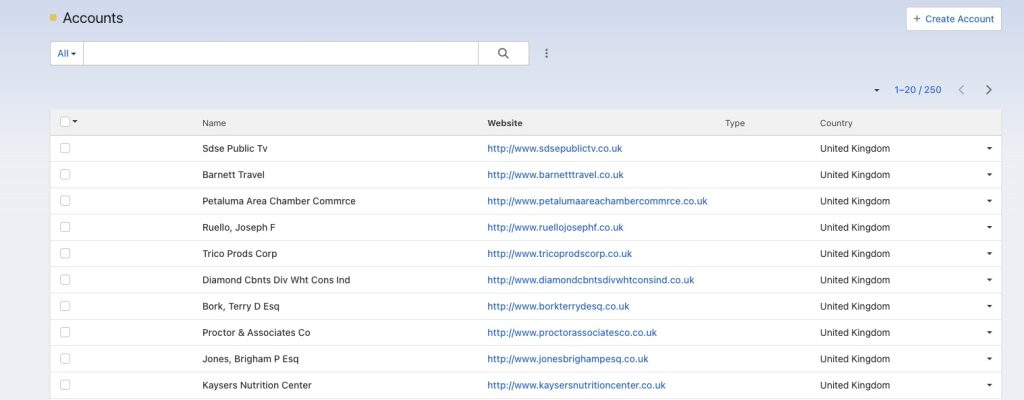
One of the first things you’ll want to do is start adding customer information. EspoCRM separates Accounts and Contacts, making it easier to organise relationships between individuals and the businesses they represent.
Accounts
Accounts generally represent the companies or organisations you work with. For example, if you supply products or services to a manufacturing business, you could create an Account for that organisation.
To create an Account:
- Navigate to the Accounts section.
- Select the option to create a new record.
- Enter the relevant company information, such as its name, website, phone number and address.
- Add any additional information relevant to your business.
- Save the record.
Contacts
Contacts represent the individual people you communicate with. For example, you might have several contacts associated with the same Account, including a purchasing manager, finance director and operations manager.
To create a Contact:
- Navigate to the Contacts section.
- Select the option to create a new record.
- Enter the person’s details, including their name, email address and telephone number.
- Link the Contact to the relevant Account.
- Add any additional information and save the record.
By linking Contacts to Accounts, you can build a clearer picture of the relationships your business has with its customers.
4. Add and manage Leads
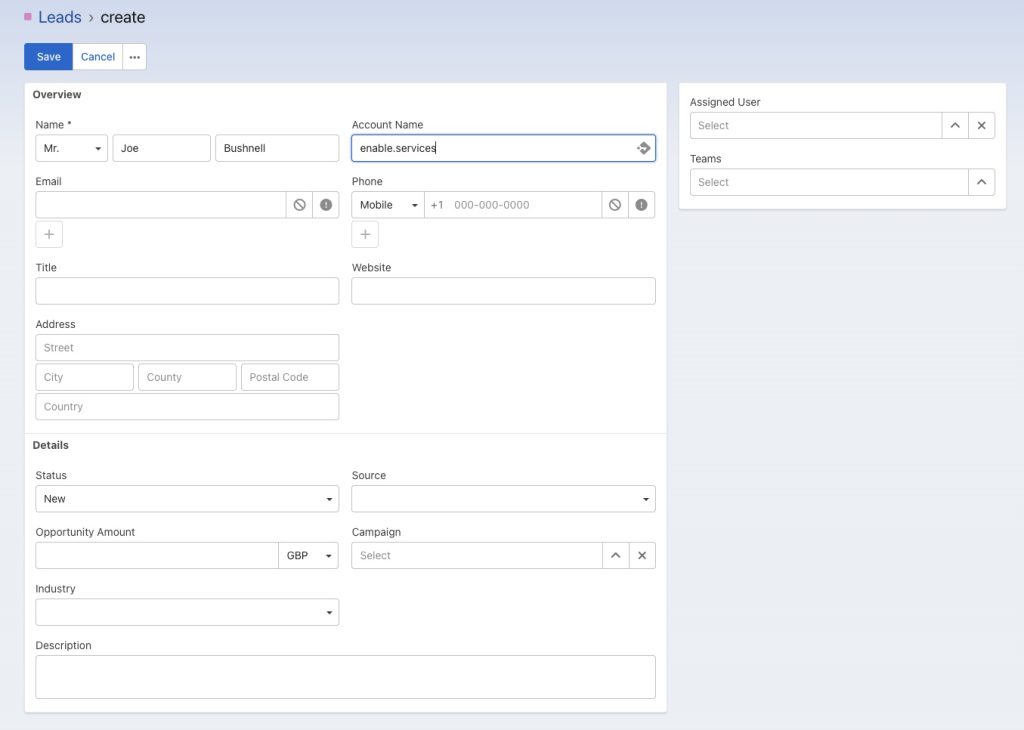
Leads are an important part of managing your sales process. In EspoCRM, a Lead represents a potential customer who has not yet been qualified or converted into an established sales relationship.
For example, someone completing an enquiry form on your website could be added to EspoCRM as a new Lead.
To create a Lead manually:
- Navigate to the Leads section.
- Select the option to create a new Lead.
- Enter the person’s or organisation’s details.
- Record where the Lead originated, such as your website, an event or a referral.
- Assign the Lead to the appropriate user or team.
- Save the record.
As you gather more information, you can update the Lead and track its progress.
Once a Lead has been qualified, it can be converted into an Account, Contact and, where appropriate, an Opportunity. This helps maintain a clear journey from initial enquiry through to a potential sale.
5. Start tracking Sales Opportunities
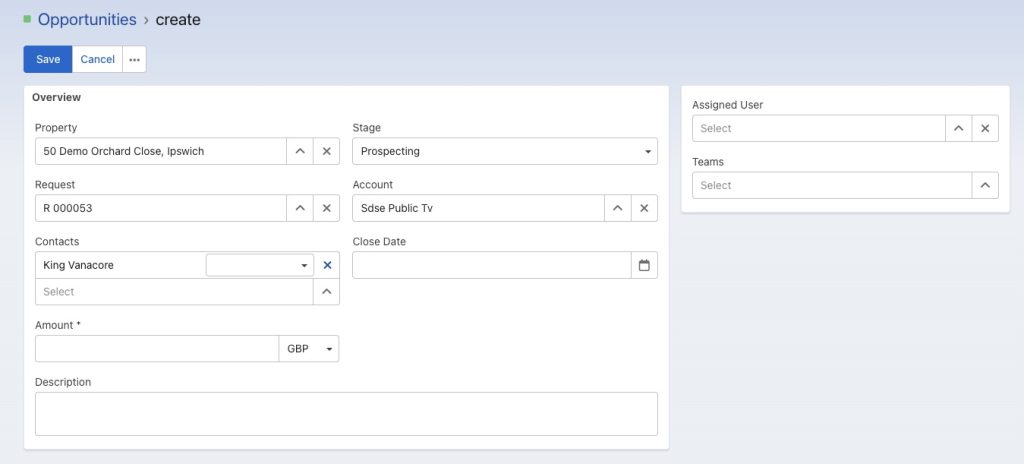
Once you’ve identified a potential sales opportunity, EspoCRM can help you monitor its progress.
Opportunities represent potential deals and allow you to record important information about each sales opportunity, including its value, expected close date and current sales stage.
To create an Opportunity:
- Navigate to the Opportunities section.
- Select the option to create a new record.
- Enter the Opportunity name.
- Link it to the relevant Account and Contact.
- Add the expected revenue or deal value.
- Set the current sales stage.
- Add an expected closing date.
- Save the record.
As the sales conversation develops, you can update the Opportunity to reflect its progress.
This provides greater visibility of your sales pipeline, helping you understand which deals are progressing, which need attention and where potential revenue is coming from.
It’s also worth taking time to consider how your business currently manages its sales stages. Configuring these to reflect your actual sales process will make the CRM more useful for your team.
6. Record your activities and customer interactions
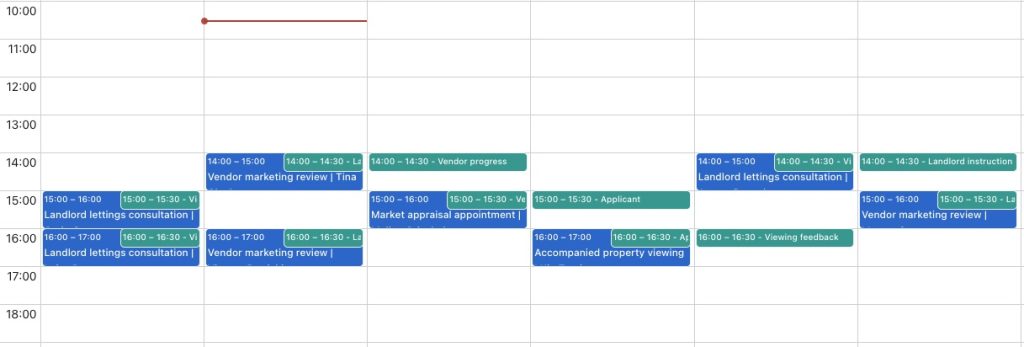
A CRM is most useful when it provides a clear history of your interactions with customers. EspoCRM allows users to manage activities such as calls, meetings and tasks, helping ensure important conversations and follow-ups aren’t lost.
For example, after speaking with a potential customer, you could:
- Record details of the phone call.
- Add notes about the conversation.
- Create a follow-up task.
- Schedule a future meeting.
- Link the activity to the relevant Contact, Account or Opportunity.
This gives other authorised users visibility of previous interactions and helps maintain continuity when multiple people are involved in managing a customer relationship.
It also makes it easier to identify outstanding tasks and keep track of upcoming commitments.
7. Customise EspoCRM to suit your business
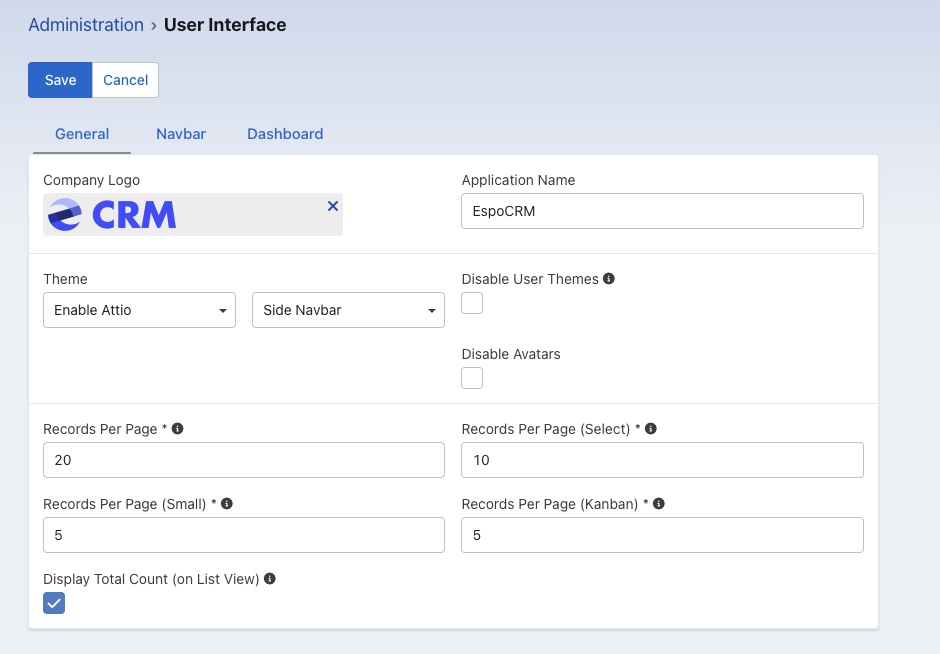
One of the advantages of EspoCRM is its flexibility. Every business manages customer relationships differently, so a CRM shouldn’t force you to work around a process that doesn’t suit your organisation.
EspoCRM provides customisation options that allow administrators to adapt the platform to their requirements.
Some examples include:
- Custom fields: Add fields to existing records to capture information specific to your business.
- Layouts: Adjust how information is displayed within records, making important fields easier for users to find.
- Relationships: Create relationships between different record types to connect information across your CRM.
- User permissions: Configure roles and access permissions to control which information users can view, edit or manage.
These options allow you to build a CRM around your business processes rather than expecting your team to change the way they work to accommodate the software.
It’s worth starting with the information and processes your team genuinely needs. Adding too many fields or unnecessary complexity from the beginning can make the CRM harder to use.
8. Import your existing customer data
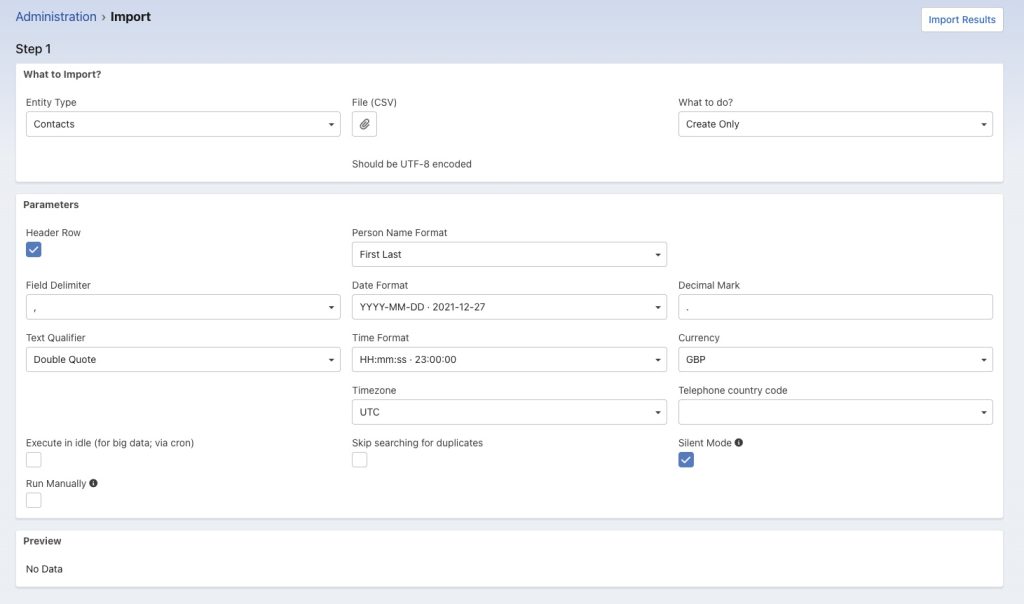
If you’re moving from another CRM or managing customer information in spreadsheets, you can import your existing data rather than entering everything manually.
First, prepare your spreadsheet by removing outdated information, checking for duplicates and ensuring column headings are clear. Save your file in CSV format, then navigate to Administration → Data → Import in EspoCRM.
Select the record type you want to import, such as Leads, Contacts or Accounts, and upload your CSV file. You’ll then be able to map your spreadsheet columns to the corresponding CRM fields and choose whether to create new records, update existing ones or both.
Top tip: Test your import with a small sample first to check everything maps correctly. If you’re moving from another CRM, enable.services also provides migration services to help make the transition as smooth as possible.
9. Think about your CRM's ongoing management

Getting your CRM set up is only the beginning. As your business becomes more reliant on EspoCRM, it’s important to consider how the system will be maintained and supported over time.
There are several areas worth considering:
- Hosting: Is your CRM running in a suitable environment with the resources it needs?
- Backups: Are your CRM database and files being backed up regularly?
- Updates: Who is responsible for managing software updates and checking compatibility?
- Security: Are user permissions and access controls reviewed regularly?
- Performance: Is the system being monitored to identify potential issues?
- Technical support: Who can you contact if something goes wrong?
These considerations are particularly important for businesses using their CRM as a central part of their daily operations.
This is where enable.services can help. As an EspoCRM partner and support provider, we offer UK-based hosting and dedicated UK helpdesk support, taking care of the technical side so you can focus on getting the most from your CRM. From ongoing maintenance and updates to troubleshooting and technical assistance, we’re here when you need us.
Getting more from EspoCRM
EspoCRM provides a flexible starting point for businesses looking to improve how they manage customer relationships, sales activity and business information.
However, you don’t need to configure everything at once. Start with the fundamentals, understand how your team works and gradually introduce additional functionality as your requirements develop.
If you’re new to EspoCRM, or looking to get more from an existing installation, having the right technical expertise available can make the process much easier. Need a hand with EspoCRM? Get in touch with our team to find out how we can help. If you’re an existing user, head to the EspoCRM forum for even more information.
Watch the EspoCRM Video Demo
Join James, our Solutions Advisor, as he explores all things EspoCRM in this 20-minute video demo. Download it for free below!