
The Complete Beginner's Guide to SugarCRM (Now SugarAI)

Whether you’re completely new to CRM systems or getting to grips with a new SugarCRM (now SugarAI) installation, knowing where to start can make all the difference. As a UK-based SugarCRM partner, enable.services has been helping businesses get more from their CRM since 2004. We’ve worked with hundreds of organisations to implement, customise and support SugarCRM, so we know what makes a CRM work in practice.
In this beginner’s guide, we’ll walk you through the essentials of SugarCRM, from navigating the interface and managing your records to creating leads, tracking opportunities and importing existing data.
By the end, you’ll have a better understanding of how SugarCRM works and how to start using it to manage your customer relationships.
Skip to:
1. Getting started with the SugarCRM interface
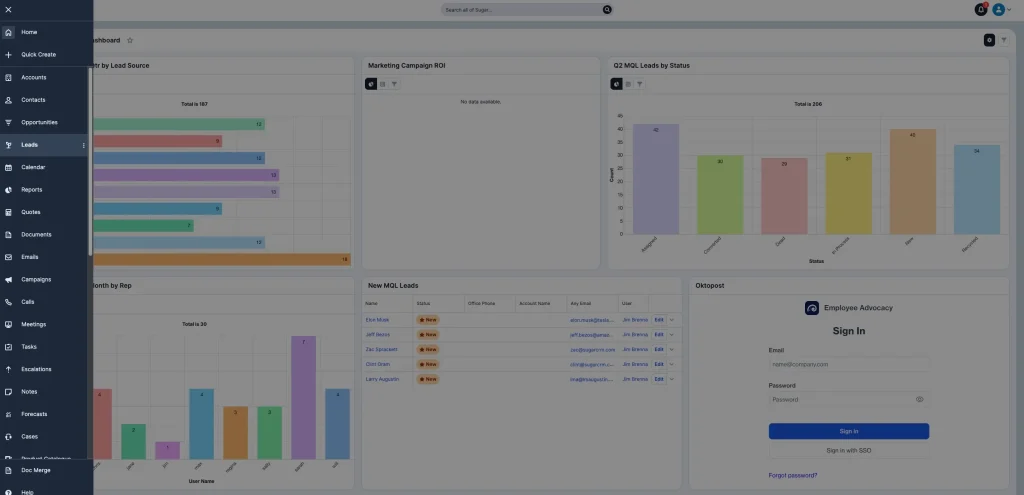
Before you start adding information, it’s worth getting familiar with the SugarCRM interface.
SugarCRM is organised into modules, with each module dedicated to a different type of business information. These modules work together to give you a complete picture of your customer relationships.
Some of the main modules you’ll come across include:
- Accounts: Companies and organisations your business works with.
- Contacts: Individual people associated with your business, usually linked to an Account.
- Leads: Potential customers who have shown an interest in your products or services.
- Opportunities: Potential sales deals that you’re actively working towards.
- Activities: Calls, meetings, tasks and other interactions with customers.
- Cases: Customer service enquiries or support issues.
You can access these modules through the navigation bar, where you’ll find the different areas of your CRM. Depending on your SugarCRM configuration, the modules available to you may differ.
Understanding Your Dashboard
Your dashboard is usually the first thing you’ll see when logging into SugarCRM.
It provides an overview of important information, helping you keep track of your sales activities, customer relationships and business performance.
You can personalise your dashboard by adding and arranging dashlets. These are individual components that display information such as:
- Your upcoming calls and meetings.
- Recently viewed records.
- Your open opportunities.
- Sales pipeline information.
- Tasks assigned to you.
Dashboards can be customised to show the information that’s most useful to your role, making it easier to prioritise your day. Learn more about managing dashboards in our Sugar Bitesize Webinar.
2. How to create a Lead in SugarCRM
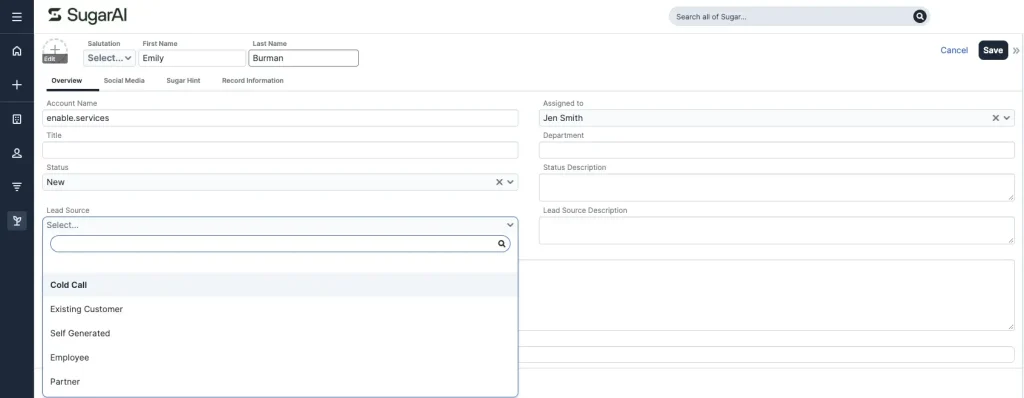
Leads are potential customers who may be interested in your products or services. They could come from website enquiries, marketing campaigns, events, referrals or other sales activities. Keeping your leads organised in SugarCRM makes it easier to track enquiries and manage your sales pipeline.
To create a new lead:
- Navigate to the Leads module.
- Select the Create option.
- Enter the lead’s details, including their first name, last name, company, email address and telephone number.
- Add any additional information, such as the lead source or lead status.
- Assign the lead to the relevant team member.
- Select Save.
Your new lead will now appear in the Leads module, where you can access and update their information.
Managing Your Leads
Creating a lead is just the beginning. As you communicate with potential customers, you’ll want to keep their records up to date. You can update lead statuses to reflect where someone is in your sales process, add notes about conversations and schedule follow-up activities.
Once a lead has been qualified and is ready to progress, you can convert it into other CRM records, such as a Contact, Account and Opportunity. This helps you move potential customers through your sales process without having to manually recreate their information.
Learn more about managing and keeping lead records up-to-date in our Sugar Bitesize Webinar.
3. How to create Accounts and Contacts in SugarCRM
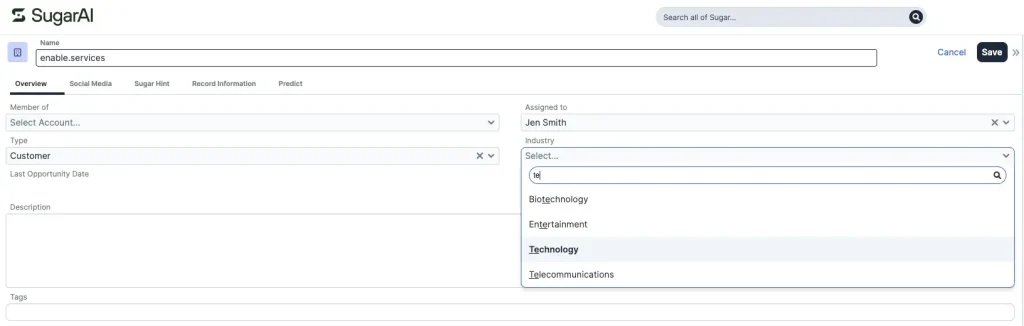
Accounts and Contacts are two of the most important modules in SugarCRM.
Although they’re closely related, they serve different purposes:
- Accounts represent businesses or organisations.
- Contacts represent the individual people you communicate with.
For example, if you’re working with a manufacturing business, the company would be stored as an Account, while the purchasing manager and finance director would each have their own Contact record.
Creating an Account
To add a new company account to SugarCRM:
- Navigate to the Accounts module.
- Select Create.
- Enter the company’s name.
- Add relevant information, such as its website, telephone number, industry and address.
- Assign the Account to the appropriate team member.
- Select Save.
You now have an Account record where you can store information about the business and manage your interactions with it.
Creating a Contact
To add an individual person:
- Navigate to the Contacts module.
- Select Create.
- Enter their first name and last name.
- Add their email address, telephone number, job title and other relevant details.
- Link the Contact to an existing Account using the Account field.
- Select Save.
You can associate multiple Contacts with the same Account, making it easier to manage relationships with different people within one organisation.
Top tip: Make sure your Contacts are linked to the correct Accounts. This helps keep your CRM organised and gives your team a clearer picture of everyone you work with at each organisation.
4. How to create and manage Opportunities in SugarCRM
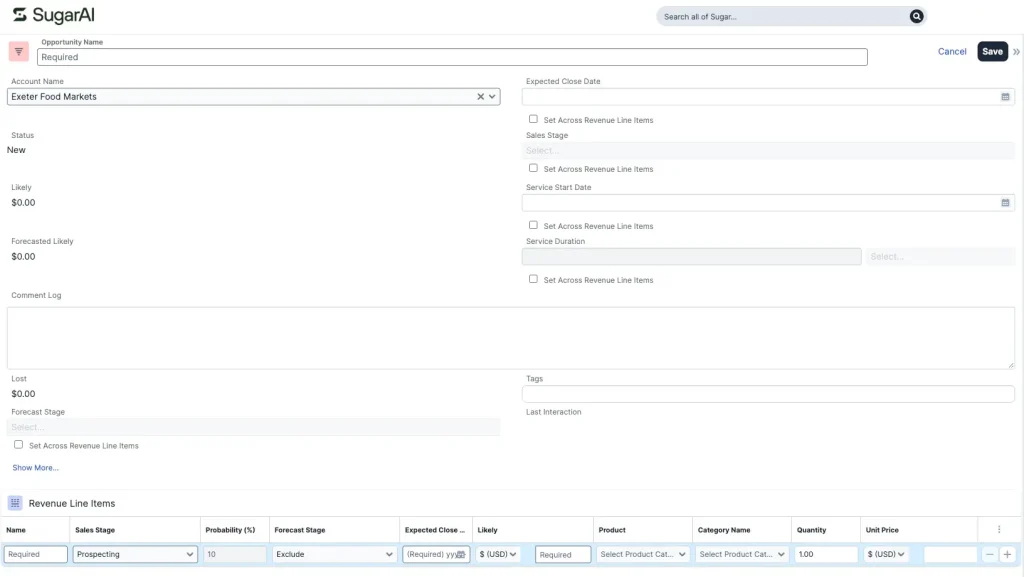
Opportunities help you track potential sales and understand how deals are progressing. Unlike Leads, which represent potential customers, Opportunities represent specific pieces of business you’re trying to win.
For example, if a company enquires about a CRM implementation, you could create an Opportunity to track the potential project, its estimated value and the likelihood of closing the deal.
To create an Opportunity:
- Navigate to the Opportunities module.
- Select Create.
- Give the Opportunity a name.
- Link it to the relevant Account and Contact.
- Enter the expected sales value and estimated close date.
- Select the appropriate sales stage.
- Assign the Opportunity to the relevant team member.
- Select Save.
Tracking Your Sales Pipeline
Once your Opportunity has been created, you can update its sales stage as it progresses.
Your stages will depend on how your organisation manages its sales process, but might include:
- Qualification
- Needs Analysis
- Proposal
- Negotiation
- Closed Won
- Closed Lost
Keeping these stages up to date helps your team understand which deals need attention and gives managers better visibility of future revenue. SugarCRM also provides reporting and forecasting tools to help you analyse your pipeline and monitor sales performance.
5. How to schedule calls, meetings and tasks in SugarCRM
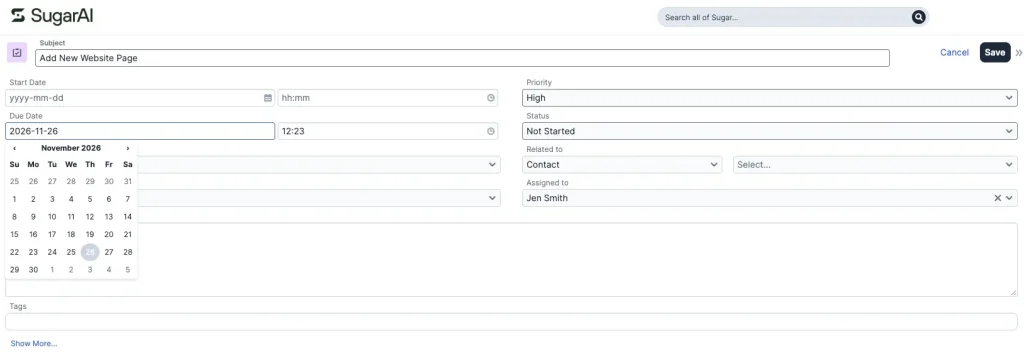
Keeping track of customer interactions is just as important as managing the records themselves.
SugarCRM includes activity management tools that allow you to schedule calls, organise meetings and assign tasks.
This means you can keep a record of your interactions without relying on separate spreadsheets or personal reminders.
Scheduling a Call
- Navigate to the Activities module or use the Quick Create option.
- Select Log Call or Schedule Call, depending on whether the call has already taken place.
- Enter the call subject and relevant details.
- Link the call to the relevant Account, Contact, Lead or Opportunity.
- Assign the call to the appropriate team member.
- Save the record.
Creating a Task
- Navigate to the Tasks module.
- Select Create.
- Enter a subject and description.
- Set a due date and priority.
- Assign the task to yourself or another team member.
- Link it to the relevant CRM record.
- Select Save.
You can then use your activity views and dashboard to keep track of upcoming tasks and appointments.
Top tip: Get into the habit of recording customer interactions as they happen. This gives everyone in your team access to the same information and makes handovers much easier.
6. How to import existing data into SugarCRM
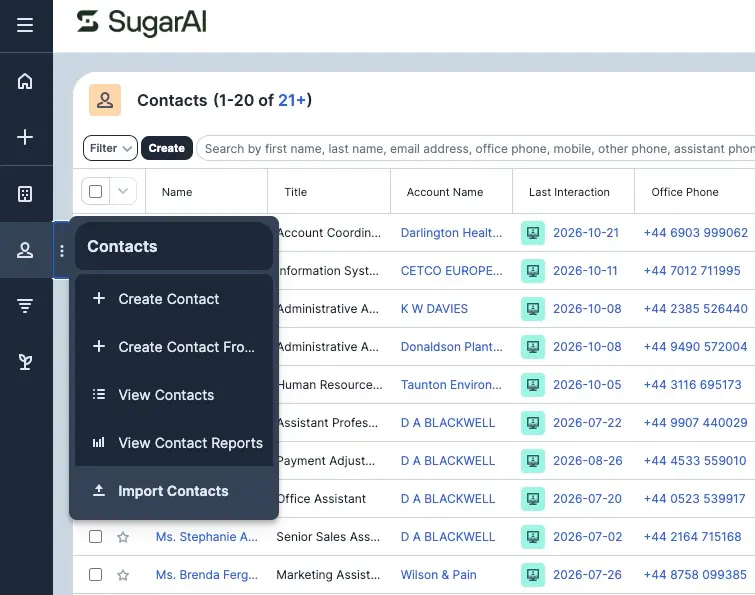
If you’re moving from another CRM or managing customer information in spreadsheets, you probably won’t want to enter everything manually. Fortunately, SugarCRM includes an Import Wizard that allows you to upload existing data using CSV files.
You can import information into modules such as Accounts, Contacts, Leads and Opportunities.
Before importing your data:
- Make sure your spreadsheet is organised into columns with clear headings.
- Check that email addresses and other important information are formatted consistently.
- Remove unnecessary duplicates where possible.
- Make sure your data is mapped to the correct SugarCRM fields.
To import your data:
- Navigate to the module you want to import information into.
- Open the module’s actions menu and select Import.
- Upload your CSV file.
- Follow the Import Wizard to map your spreadsheet columns to the relevant SugarCRM fields.
- Review the import settings, including how duplicate records should be handled.
- Preview your data and check that the information is mapped correctly.
- Complete the import.
Your records should now appear in the relevant module.
Important: If you’re importing related records, such as Accounts and Contacts, import your Accounts first. This makes it easier to associate Contacts with the correct companies during the import process.
If you’re migrating a large amount of data from another CRM, it’s worth planning the process carefully to avoid duplicate records, missing information and broken relationships.
Where to go next with SugarCRM
Now that you’ve covered the basics, you can start exploring some of SugarCRM’s more advanced functionality. SugarCRM is highly customisable, meaning you can adapt it to suit your organisation’s processes rather than forcing your team to work around a standard CRM setup.
If you need help developing your SugarCRM knowledge, we’re here to support you. As leading SugarCRM partners and International Partner of the Year 2026, we offer a range of Sugar services, from end-user training to helpdesk support and troubleshooting. Get in touch today – we’d be happy to help.